
Phone Storage Full Even After Deleting? 10 Powerful Ways to Reclaim Space
Seeing your phone storage full even after deleting hundreds of photos is one of the most common Android frustrations, and the explanation is usually simple: the delete button on most phones does not actually delete anything straight away. Files sit in a hidden Trash for 30 days, WhatsApp quietly keeps every photo it has ever auto-downloaded, apps hoard gigabytes of cache and data, and old installer files pile up in Downloads. This breakdown works through each hidden culprit in the order that frees the most space with the least risk, explains what is genuinely safe to clear, and ends with the checks worth doing before anyone talks you into a factory reset.
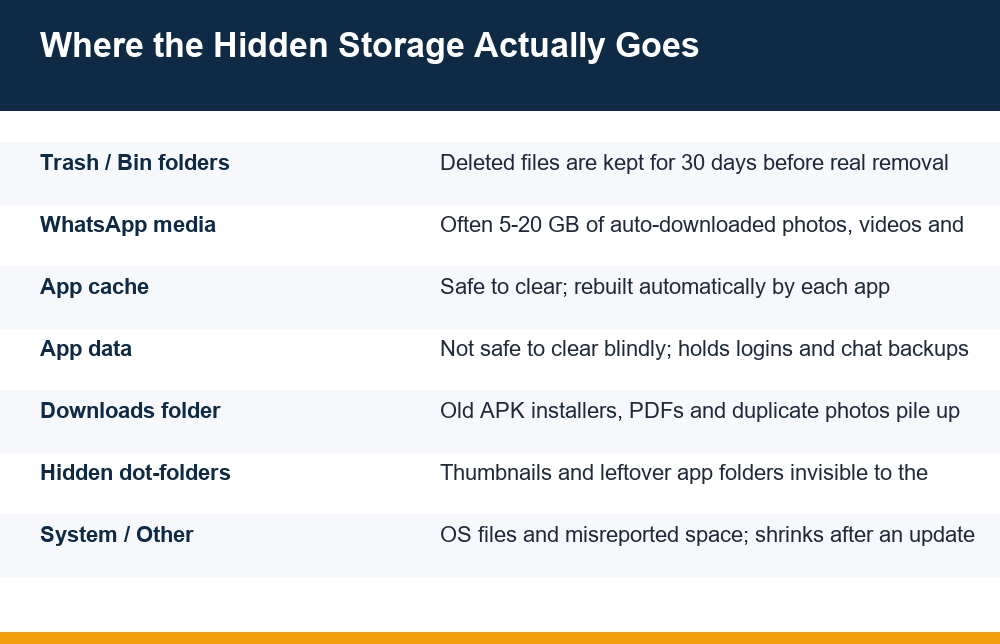
Phone Storage Full Even After Deleting: The Short Answer
The short answer: on almost every modern Android phone, deleting a file moves it to a Trash or Bin folder instead of removing it. The gallery app has one, the file manager has one, and cloud photo apps have their own. Until those bins are emptied – or until their 30-day timers run out – the storage meter does not move. So a phone can show phone storage full even after deleting thousands of photos, because every one of those photos still physically exists on the device.
The second half of the answer is that the biggest space eaters are rarely the files you deleted in the first place. On most Indian Android phones the real weight sits in WhatsApp’s media folders, in app cache and app data, in forgotten downloads, and in hidden folders that the gallery never shows. Deleting visible photos while those stay untouched is like emptying one drawer of a full cupboard.
There is also a third, less common case: the phone is genuinely misreporting its storage. A bug in the storage indexer can keep counting files that no longer exist, which is why a restart – and sometimes a system update – fixes a ‘full’ phone without a single file being removed. The sections below go through all three cases, starting with the quickest wins.
- Deleted files usually wait 30 days in a Trash folder before they are really gone
- WhatsApp media, app cache and Downloads hold far more space than the gallery shows
- A restart or pending system update can fix storage that is misreported rather than full
Trash Folders: Why Deleted Files Are Not Gone for 30 Days
Start here, because it takes two minutes and often recovers several gigabytes instantly. Android does not have one single recycle bin; it has several, and each app maintains its own. If you are seeing phone storage full even after deleting an entire photo album, the album is very likely sitting in one of these bins right now.
In Files by Google – preinstalled on most budget Android phones sold in India – tap the menu icon (three lines) in the top corner and choose Trash (sometimes shown as Bin). Everything deleted through the app in the last 30 days is listed there and still counts against your storage. Select all and tap delete to remove it permanently. Samsung phones have the same thing in two places: Gallery → menu → Recycle bin, and My Files → menu → Trash. Xiaomi, Vivo, Oppo and Realme phones ship their own gallery apps with an equivalent bin, usually under Albums or in the gallery settings.
Cloud photo apps add a second layer. If a photo was backed up, deleting it from the gallery may only remove the local copy, while the app’s own Trash (Photos app → Library → Trash on stock Android) keeps it for 30 to 60 days. Empty that separately. Once every bin is cleared, restart the phone so the storage counter re-indexes – the number you see afterwards is the honest one, and everything else in this piece works from that baseline.
WhatsApp Media: The Single Biggest Space Eater on Indian Phones
On a typical Indian Android phone, WhatsApp is not just another app – it is frequently the single largest consumer of storage, ahead of the camera roll. Every good-morning image, forwarded video, status you viewed and voice note you played is saved to internal storage by default, and group chats multiply the problem: one video forwarded to five groups is stored five times. Phones that are two or three years old routinely carry 10-20 GB of WhatsApp media the owner has never looked at twice.
WhatsApp has a built-in tool that makes this easy to fix, and it is far safer than digging through folders manually:
- Open WhatsApp and go to Settings → Storage and data → Manage storage
- Review the Larger than 5 MB section first – sorting by size surfaces the heavy videos
- Open Forwarded many times, which is almost always junk that can be bulk-deleted
- Work through the per-chat list, starting with the biggest groups, and bulk-select media inside each
- Finally, turn off auto-download under Settings → Storage and data → Media auto-download for photos, videos and documents on mobile data and Wi-Fi, so the folder does not refill
Two cautions. First, deleting media inside WhatsApp’s manager removes it from the phone’s gallery too, because it is the same file – save anything you want to keep before bulk-deleting. Second, the Status folder (viewed statuses are cached as hidden files) and old chat backup files can linger even after this cleanup; the hidden-files section below covers how to find them.
App Cache vs App Data: What Is Safe to Clear
Open Settings → Apps, tap any app, and under Storage you will see two buttons: Clear cache and Clear data (sometimes ‘Clear storage’). They look similar and behave completely differently, and confusing them is how people lose chat histories and saved logins. If you still see phone storage full even after deleting media, cache is often the next few gigabytes – but only one of these two buttons is routinely safe.
| Clear cache | Clear data | |
|---|---|---|
| What it removes | Temporary files: thumbnails, pre-loaded images, scraps the app keeps to open faster | Everything: logins, settings, downloaded content, offline files, local chat history |
| Do you get logged out? | No | Yes, almost always |
| Does the app rebuild it? | Yes, automatically as you use the app | No – anything not backed up elsewhere is gone |
| Safe to use freely? | Yes | Only as a last resort, and only after checking what the app stores locally |
| Typical space freed | 100 MB – 2 GB per heavy app | Varies; can be large but at real cost |
The practical routine: sort the app list by size, open the top five or six apps, and clear cache on each. Browsers, video apps, map apps and social apps are usually the heaviest. Expect the cache to grow back over the following weeks – that is normal and healthy, not a failure of the cleanup. Clearing it monthly is a reasonable rhythm; clearing it daily achieves nothing except slower app launches.
Clear data is a different tool for a different job: a misbehaving app that crashes or hangs. Before pressing it, ask what lives only inside that app. A messaging app’s local backup, a game’s offline progress, a notes app without cloud sync – all of it disappears. Low storage itself makes apps misbehave in odd ways too; a phone with no free space can even fail to receive SMS, which is one of the checks covered in our breakdown of why an OTP never arrives when you need it.
Downloads, Old APKs and Duplicate Files
The Downloads folder is where storage goes to be forgotten. Every PDF ticket, bank statement, shared photo saved from a chat app, and – heaviest of all – every APK installer file ever downloaded sits there until someone deletes it manually. An APK is only the installer: once the app is installed, the installer file does nothing except occupy 50-900 MB. People who sideload apps often have a dozen of them, including multiple old versions of the same app.
Open your file manager, go to Downloads, and sort by size. Work from the top down:
- Delete every
.apkfile for an app that is already installed or that you no longer use - Delete duplicate photos and videos – files shared through chat apps are often saved twice with names like IMG_xxxx(1)
- Move documents you must keep (ID proofs, statements) to cloud storage or a computer, then delete the local copy
- Check Downloads inside your browser’s own menu as well – some browsers keep a separate download folder
While you are deleting old installers, it is worth tightening how new ones arrive: sideloaded APKs from random links are also a common way malware gets onto a phone, and a fake ‘cleaner’ or ‘update’ APK can be the reason storage and performance problems started. The safe habits are covered step by step in our checklist on checking an APK file before you install it. If a file in Downloads has a name you do not recognise and an .apk extension, deleting it is the right default.
Hidden Files and the Mysterious ‘Other’ or ‘System’ Storage
After the visible cleanup, many phones still show a large grey block in the storage chart labelled Other, Miscellaneous or System. Part of it is legitimate – the operating system genuinely needs 10-25 GB on modern Android versions, and nothing a user does will shrink that. But part of ‘Other’ is often hidden app leftovers that can be reclaimed.
Android hides any folder or file whose name starts with a dot, and apps use this heavily: .thumbnails (the gallery’s preview images, which can silently reach several gigabytes on photo-heavy phones), .Statuses (every WhatsApp status you have viewed), and assorted .cache or .temp folders left behind by apps you uninstalled months ago. In your file manager’s settings, enable Show hidden files, then browse internal storage and sort folders by size. A folder named after an app that is no longer installed is safe to delete; the .thumbnails folder inside DCIM is also safe, because the gallery rebuilds it (slowly, the first time you scroll).
If ‘System’ itself looks absurdly large – 40 GB or more, or visibly growing day by day – you are probably looking at the misreporting case rather than real files. The storage index has lost track, and the result is phone storage full even after deleting everything you can find. The fix sequence is: restart the phone; if that fails, boot into safe mode once and restart again; and check Settings → System update, because storage-counting bugs are exactly the kind of fault that maintenance updates fix. An update also clears the temporary files the old system version left behind. Only if all of that fails does the factory-reset conversation begin – and the next two sections should come first.
Phone Cleaner Apps: Why Caution Beats Convenience
Search this problem online and the top suggestions are often third-party ‘cleaner’, ‘booster’ or ‘junk remover’ apps. The honest assessment: a cleaner app cannot do anything the phone’s own tools cannot. Clearing cache, finding large files, spotting duplicates – Settings and the built-in file manager already do all of it. What many cleaner apps add is a business model: aggressive full-screen ads, constant scare notifications (‘Your phone is 92% full!’), background services that themselves consume storage and battery, and in the worst cases paid subscriptions activated through dark-pattern screens.
Some are worse than useless. Fake cleaner apps are a recurring vehicle for adware and malware, particularly when installed from links outside an official app store. The sensible baseline for any utility app is the one laid out in the Indian government’s Cyber Swachhta Kendra security best practices: install from official stores only, check the permissions an app demands against what it actually does, and treat an app that demands SMS, contacts or accessibility access ‘to clean junk files’ as a red flag, not a feature.
If a cleaner app has already talked you into a recurring payment you did not intend, the charge usually runs as an automatic mandate on your UPI app or card, and it keeps billing until the mandate itself is revoked – uninstalling the app does not stop it. The step-ordered process is in our walkthrough on cancelling a UPI autopay mandate from your UPI app. After cancelling, uninstall the cleaner; the storage it frees by leaving is often more than it ever cleaned.
The Safe Order: Every Step Before a Factory Reset
A factory reset does fix a full phone – the way demolishing a house fixes a blocked drain. It should be the last step, not the third, and it is almost never needed for a storage problem. Here is the full sequence in the order that maximises space recovered per unit of risk. Each step is covered in detail above; this table is the checklist view.
| Step | Action | Typical space freed | Risk |
|---|---|---|---|
| 1 | Empty every Trash/Bin: file manager, gallery, cloud photo app | 1-10 GB | None – these files were already deleted once |
| 2 | WhatsApp: Manage storage → delete large and forwarded media; turn off auto-download | 3-20 GB | Low – save keepers first |
| 3 | Clear cache on the five largest apps | 1-5 GB | None |
| 4 | Downloads: delete old APKs, duplicates, finished documents | 1-5 GB | Low |
| 5 | Show hidden files: delete .thumbnails and folders of uninstalled apps | 1-4 GB | Low |
| 6 | Move photos/videos to cloud backup or a computer, then delete local copies | Varies | Low if backup is verified first |
| 7 | Restart; install any pending system update | Fixes misreported storage | None |
| 8 | Factory reset – only if storage is still wrongly reported after all of the above | Everything | High – full data loss without a verified backup |
Two rules make step 8 survivable if you ever reach it. First, verify the backup before resetting, not after: open the cloud backup on another device or in a browser and confirm the photos, contacts and chat backups are actually there. Second, note down the Google account and password signed in on the phone – after a reset, the phone will demand that same account before it lets anyone in, and being locked out of a freshly reset phone is a worse problem than full storage ever was.
The realistic outcome for most people: steps 1 to 5 recover between 5 and 30 GB in under an hour, with nothing of value lost. A phone that still reports itself full after honest cleanup and a system update has either a genuine capacity problem – 32 GB simply is not enough for a 2026 app load – or a fault that a service centre, not a cleaner app, should look at.
Frequently Asked Questions
Why does my phone say storage is full when I deleted everything?
A phone storage full even after deleting message usually means the files are not really gone. Android gallery apps, file managers and cloud photo apps each keep deleted files in their own Trash or Bin folder for around 30 days, and those files still count against storage until the bins are emptied. Beyond that, the biggest space users – WhatsApp media, app cache, hidden thumbnail folders and old downloads – are not touched by deleting photos at all. In rarer cases the phone is misreporting storage, which a restart or a pending system update fixes.
Where is the Trash folder on an Android phone?
There are several. In Files by Google: menu (three lines) → Trash. On Samsung: Gallery → menu → Recycle bin, and My Files → menu → Trash. Xiaomi, Vivo, Oppo and Realme gallery apps have an equivalent bin in their albums or settings. Cloud photo apps keep a separate Trash of their own (for example Library → Trash) that must be emptied separately. Files wait about 30 days in each bin before they are removed automatically.
Does clearing cache delete my app data?
No. Clear cache only removes temporary files – thumbnails and pre-loaded content the app rebuilds automatically – and never logs you out or deletes your content. Clear data (or Clear storage) is the dangerous button: it wipes logins, settings, offline files and local histories, effectively resetting the app. Clearing cache on your largest apps is safe to do monthly; clearing data should be reserved for an app that is seriously misbehaving, and only after checking what it stores locally.
How do I delete WhatsApp media to free up space?
Use WhatsApp’s own tool: Settings → Storage and data → Manage storage. Review ‘Larger than 5 MB’ and ‘Forwarded many times’ first, then work through the biggest chats and bulk-delete media inside each. Save anything you want to keep beforehand, because deleting there removes the file from your gallery too. Then turn off media auto-download under Settings → Storage and data so the folders do not immediately refill.
Why is ‘Other’ or ‘System’ taking so much storage?
Partly because the operating system legitimately needs 10-25 GB on modern Android. The rest of ‘Other’ is usually hidden files: the gallery’s .thumbnails folder, viewed WhatsApp statuses, and cache folders left behind by uninstalled apps – enable ‘Show hidden files’ in your file manager to find and remove them. If System shows an absurd figure like 40 GB or keeps growing, the storage index is probably miscounting; restart the phone and install any pending system update before considering anything drastic.
Is it safe to use phone cleaner apps to free space?
Mostly unnecessary and sometimes risky. A cleaner app cannot free anything that Settings and the built-in file manager cannot, while many add intrusive ads, scare notifications, background services and subscription traps – and fake cleaners from outside official app stores are a known malware route. If you do install one, follow basic app-hygiene practice: official store only, and refuse any cleaner demanding SMS, contact or accessibility permissions. If one has started a recurring charge, revoke the autopay mandate in your UPI app – uninstalling alone does not stop billing.
