How to Cancel UPI Autopay: 6 Easy Steps That Work in Any UPI App
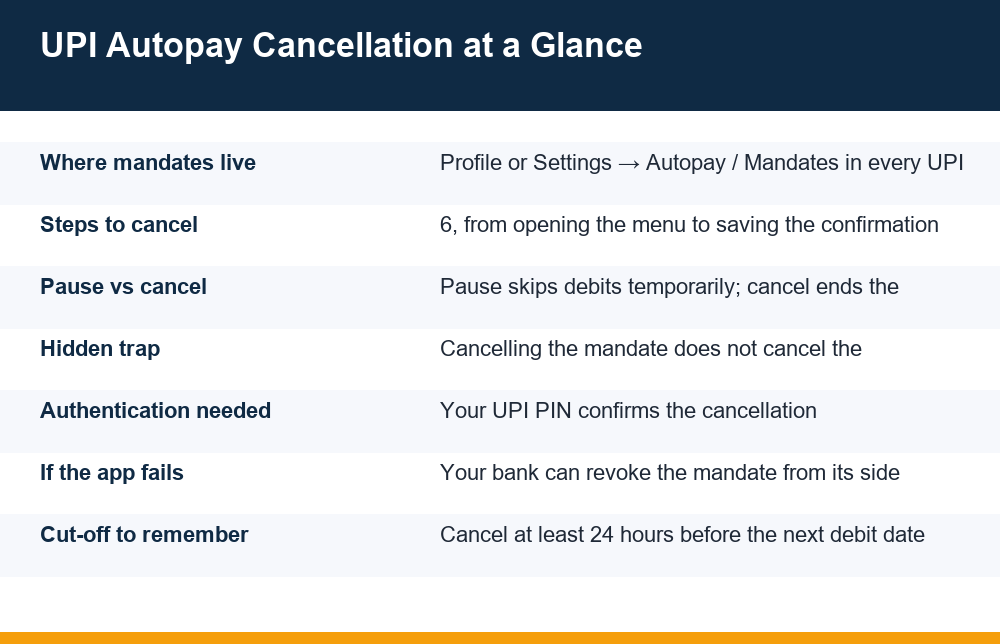
If you want to know how to cancel UPI autopay, the short answer is this: open your UPI app, go to the Autopay or Mandates section inside Profile or Settings, select the mandate, tap Cancel (not Pause), and confirm with your UPI PIN. That works the same way in every UPI app, because autopay mandates follow one common design across the whole UPI system.
The longer answer matters just as much: cancelling the mandate stops future debits from your bank account, but it does not cancel the subscription you signed up for, and some mandates refuse to cancel from the app at all. This breakdown covers the full six steps, the pause-versus-cancel distinction most pages skip, and exactly what to do when the app says a mandate cannot be revoked.
How to Cancel UPI Autopay in 6 Steps
Most pages on this topic show screenshots from one named app, which is useless the moment you use a different one. You do not need app-specific instructions. Every UPI app keeps your active mandates in a dedicated section, and the flow to revoke one is nearly identical everywhere. Here is how to cancel UPI autopay in any app, step by step.
- Open your UPI app and go to your profile. Tap your photo or initials, usually in the top corner. The mandate controls always sit behind the profile or settings area, never on the home screen.
- Find the Autopay or Mandates menu. It may be labelled Autopay, UPI Autopay, Mandates, Subscriptions or Recurring Payments. If you cannot spot it, use the app’s search bar and type “autopay” or “mandate”.
- Open the list of active mandates. You will see every recurring authorisation created through that app: the merchant name, the amount or upper limit, the frequency and the next debit date.
- Select the mandate you want to stop. Tap it to open the detail view. Read the amount and frequency carefully so you are cancelling the right one — people with several mandates regularly kill the wrong subscription.
- Choose Cancel or Revoke, not Pause. The detail screen typically offers Pause and Cancel (sometimes also Modify). Pause only skips debits temporarily. Cancel ends the mandate permanently. Pick Cancel and confirm.
- Enter your UPI PIN and save the confirmation. The cancellation is authorised with the same PIN you use for payments. Once it goes through, screenshot the confirmation screen and keep the SMS from your bank. If a disputed debit happens later, that timestamp is your evidence.
Timing matters more than most people realise. If the next debit is scheduled for tomorrow morning, the instruction to collect the money may already be queued with your bank. As a working rule, cancel at least 24 hours before the scheduled debit date. If you cancel on the debit day itself, assume one more payment may still go through, and treat anything after that as a genuine failure worth disputing.
One more structural point that explains a lot of confusion: a mandate is an agreement between the merchant, your bank and the UPI rails. The app you created it in is just the window you view it through. That is why the cancellation needs your UPI PIN — you are instructing your bank to stop honouring the merchant’s collection requests, not merely deleting an entry inside an app.
Pause vs Cancel vs Modify: Know the Difference
The mandate detail screen usually offers three actions, and choosing the wrong one is the single most common reason people believe their cancellation “did not work”. The three options do very different things, and only one of them actually ends the arrangement.
| Action | What it does | Debits after? | Reversible? |
|---|---|---|---|
| Pause | Temporarily suspends the mandate for a period you choose or until you resume it | No, while paused — they resume automatically or manually later | Yes — tap Resume anytime |
| Modify | Changes the amount cap, frequency or end date of the mandate | Yes, on the new terms | Yes — modify again |
| Cancel / Revoke | Permanently ends the mandate at the bank level | No, never — the merchant must create a brand-new mandate to charge you again | No — a fresh mandate needs your PIN approval from scratch |
Pause is genuinely useful when you want a break rather than an exit — for example, suspending a content subscription for two months of exams without losing the arrangement. But if your goal is “stop taking my money, permanently”, pause is the wrong tool. A paused mandate still exists, still shows as active-but-suspended, and in some setups resumes on its own when the pause window ends. If you paused a mandate six months ago and a debit suddenly appears, this is almost always why.
The practical test is simple: after you act, reopen the mandates list. A cancelled mandate either disappears or moves to an “inactive” or “closed” section with no resume option. A paused one stays in the active list with a resume button. If you can still see a Resume button, you have not cancelled anything.
Why Cancelling the Mandate Does Not End the Subscription
This is the trap that app-specific tutorials almost never mention, and it is the part of how to cancel UPI autopay that causes the most grief afterwards. The mandate and the subscription are two separate contracts. The mandate is a payment instruction sitting with your bank. The subscription is a service agreement sitting with the merchant. Killing one does not touch the other.
When you cancel the mandate, your bank stops paying — that part works. But on the merchant’s side, your account often remains “active with a failed payment”. Depending on the merchant, three things can then happen, and none of them is a silent, graceful goodbye:
- Dunning messages: the merchant emails and texts you about the failed payment, asks you to “update your payment method”, and may send a fresh mandate request to your UPI app hoping you approve it reflexively.
- Service suspension with accrued dues: some merchants mark the unpaid period as outstanding. If you ever return, the arrears get added to your first new bill.
- Alternate charging: if the merchant also holds a saved card or wallet from your original sign-up, the subscription may simply start charging that instead. The debits move; they do not stop.
The clean sequence is therefore: cancel the subscription inside the merchant’s own app or website first, get a written confirmation (email or in-app message), and then cancel the mandate in your UPI app as the backstop. Doing it in that order means the merchant has no basis to claim dues and no reason to send new collection attempts.
If a merchant keeps billing or dunning you after you have cancelled both the subscription and the mandate and you have the confirmations to show it, that is an ordinary consumer grievance. You can register it with the National Consumer Helpline, the Department of Consumer Affairs portal, which issues a docket number and forwards the complaint to the company. Keep your cancellation screenshots attached — timestamps settle most of these disputes quickly.
When the Mandate Will Not Cancel From the App
Sometimes you do everything right and the app still fails you: the Cancel button errors out, the mandate reappears after showing as cancelled, or the mandates list will not load at all. This usually comes down to one of a few causes, each with its own fix.
- The debit is already in process. If you try to cancel within hours of the scheduled debit, the collection request may already be locked in. Wait for the debit to complete or fail, then cancel. The cancellation applies from the next cycle.
- The mandate was created in a different app. You can normally only manage a mandate from the app where it was created. If you set up the autopay in one UPI app and later switched to another, open the original app — the mandate is sitting there.
- The linked bank account changed or closed. If you removed the bank account the mandate draws from, the app may be unable to process the revocation. Re-link the account temporarily, cancel the mandate, then remove the account again.
- App or server error. UPI apps have outages like anything else. Update the app, wait a few hours, and retry before escalating.
If none of that works, go over the app’s head: your bank can revoke the mandate from its side. The mandate ultimately lives against your bank account, so the bank can act on it regardless of what the app shows. Use your bank’s mobile banking app (look for a UPI Mandates or Autopay section there), its net banking portal, or simply call the bank’s customer care and ask them to revoke the specific mandate. Have the merchant name, amount and debit date ready from your statement.
As a final layer, every UPI app and every bank has a formal grievance mechanism for exactly this situation. Raise a ticket in the app’s help section quoting the mandate details and the error you hit, and note the ticket number. A written trail turns “the app would not let me cancel” from your word into a documented fact — which matters if a debit goes through after you tried to stop it.
How to See Every Active Mandate on Your Number
Forgotten mandates are the quiet half of this problem. A one-year subscription approved in thirty seconds during a free-trial signup keeps debiting long after you stopped using the service, and because the amounts are often small, the debits hide in plain sight in your statement. Before deciding how to cancel UPI autopay for one subscription, it is worth auditing everything that has standing permission to take your money.
There is no single master screen yet that every user can rely on, so a proper audit has three passes:
- Check every UPI app you have ever used. Mandates show in the app where they were created. If you have used three UPI apps over the years, open the Autopay or Mandates section in all three — including apps you no longer actively use but are still installed or can reinstall.
- Check your bank’s own channels. Your bank’s mobile app and net banking portal usually list UPI mandates registered against each account, independent of which UPI app created them. This catches mandates from apps you deleted.
- Scan six months of bank statements. Search for recurring entries with the same merchant name and interval. Anything that repeats monthly or yearly and that you cannot name on sight deserves investigation.
While doing this, note the difference between a mandate’s amount and its upper limit. Many mandates are approved “up to” an amount rather than for a fixed figure, which is how a subscription can debit more this month than last month without any new approval from you. The mandate detail screen shows the cap you agreed to; if the actual debits are creeping toward it, that is the merchant using headroom you granted at signup.
Make this audit a habit — twice a year is enough for most people. Ten minutes of scrolling through mandate lists is considerably cheaper than discovering a dead app has been collecting a renewal fee for three years.
Refunds, Reactivation and Other Loose Ends
Cancelling the mandate answers the question going forward. It says nothing about money already taken, and two post-cancellation surprises come up often enough to deal with directly.
Refunds of past debits. Cancelling autopay is not retroactive. Payments already collected were authorised under a mandate you approved, so the bank will not reverse them simply because you cancelled afterwards. Whether you get anything back depends entirely on the merchant’s own refund policy — a pro-rata refund for unused subscription time if their terms allow it, or nothing if they do not. Request it from the merchant in writing and keep the thread.
The exception is a debit that happens after a confirmed cancellation: that is an unauthorised transaction, and you should dispute it with your bank immediately, in writing, with your cancellation confirmation attached. The same urgency applies as when a UPI transaction fails but the money is debited anyway — the sooner the dispute is raised, the cleaner the reversal.
Mandates that seem to come back from the dead. A genuinely cancelled mandate cannot reactivate itself — ending it is permanent at the bank level. When people report a “reactivated” autopay, it is almost always one of these instead:
- The mandate was paused, not cancelled, and resumed when the pause window ended.
- The merchant sent a new mandate request after the cancellation, and it was approved in a hurry — one tap and a PIN is all it takes.
- A second, older mandate for the same merchant existed in another app or against another bank account, and that one was never touched.
- The subscription moved to a saved card or wallet, so the charge continues through a different rail and merely looks like the mandate survived.
Each of those has the same cure: the audit from the previous section, plus a refusal to approve any mandate request you were not expecting. A mandate request notification deserves the same ten seconds of scrutiny as a payment request from a stranger.
Mistakes to Avoid When Closing an Autopay
Pulled together, here are the errors that generate most of the complaints threads on this subject — every one of them avoidable once you know the mechanics above.
- Pausing when you meant to cancel, then being surprised by a debit months later when the pause lapsed.
- Cancelling the mandate but not the subscription, leaving the merchant free to dun you, accrue dues or charge a saved card instead.
- Cancelling on the debit day and treating the already-queued payment as proof the cancellation failed.
- Looking in the wrong app — the mandate only shows where it was created, so a switch of UPI apps hides it from view.
- Deleting the UPI app or bank account in the belief that this kills the mandate. It does not; it only removes your window onto it. Cancel first, delete after.
- Approving mandate requests reflexively during signups and free trials. This is especially common inside earning apps that promise income without investment, where a “verification” or “premium unlock” flow quietly sets up a recurring debit.
- Keeping no record. Without the confirmation screenshot and SMS, a later dispute becomes your memory against the merchant’s logs.
A final note on care at the keyboard: mandate screens list merchants with similar names, and cancellation is one tap from modification. Slow down and read before confirming, exactly as you would before sending money — the cost of haste here is the same as when money goes to the wrong UPI ID: a preventable problem that takes far longer to unwind than it took to create.
None of this requires technical skill. The mandate system was built with a user-controlled off switch, the same six steps work in every UPI app, and the bank stands behind the app as a second line of control. Cancel the subscription with the merchant, cancel the mandate with your PIN, keep the confirmations, and audit your mandate list twice a year — that is the entire discipline.
Frequently Asked Questions
Does cancelling a UPI mandate stop the subscription itself?
No. The mandate is only the payment instruction with your bank; the subscription is a separate agreement with the merchant. Cancelling the mandate stops future debits, but the merchant may mark your account as unpaid, accrue dues, or charge a saved card instead. Cancel the subscription in the merchant’s own app or website first, then cancel the mandate as the backstop.
What is the difference between pausing and cancelling UPI autopay?
Pause temporarily suspends debits and can be resumed — in some cases it resumes automatically when the pause window ends. Cancel permanently revokes the mandate at the bank level, and the merchant would need your fresh PIN approval on a brand-new mandate to ever charge you again. If a Resume button is still visible on the mandate, it was paused, not cancelled.
Can the bank cancel a UPI autopay mandate if the app cannot?
Yes. The mandate is registered against your bank account, so your bank can revoke it regardless of what the UPI app shows. Use the bank’s own mobile or net banking UPI mandates section, or call the bank’s customer care with the merchant name, amount and debit date from your statement.
Will I get a refund of payments already taken after cancelling autopay?
Cancellation is not retroactive, so past debits made under a valid mandate are not automatically reversed; any refund depends on the merchant’s own policy and must be requested from them. A debit that happens after a confirmed cancellation is different — that is unauthorised, and you should dispute it with your bank immediately with your cancellation confirmation attached.
Why does a UPI autopay mandate keep reactivating?
A genuinely cancelled mandate cannot reactivate. What usually happened is one of four things: the mandate was paused rather than cancelled, a new mandate request from the merchant was approved in a hurry, an older duplicate mandate exists in another app or bank account, or the subscription moved to a saved card or wallet. Audit all your UPI apps and bank channels to find the real source.
How do I see all active autopay mandates on my number?
Check the Autopay or Mandates section in every UPI app you have ever used (mandates show only in the app that created them), then check your bank’s own mobile or net banking portal for mandates registered against each account, and finally scan six months of statements for repeating merchant entries. Repeat this audit about twice a year.
